
What are the best UX/UI design software and tools for 2025 and 2026?
This post was created in 2021, last updated in 2025.
Traditional tools for graphic design, such as Photoshop, Illustrator, and Gimp, have for many years ceased to be the most optimized software for UX and UI design. It’s because those tools weren’t developed for UX/UI design work, and even though some of them have been updated since, there are better purpose-based tools available, such as Figma. Figma was created specifically for designing websites and apps.
You may also be interested in: The 4 Best Books to Learn UX/UI Design for Beginners
Figma is leading the industry-standard practice
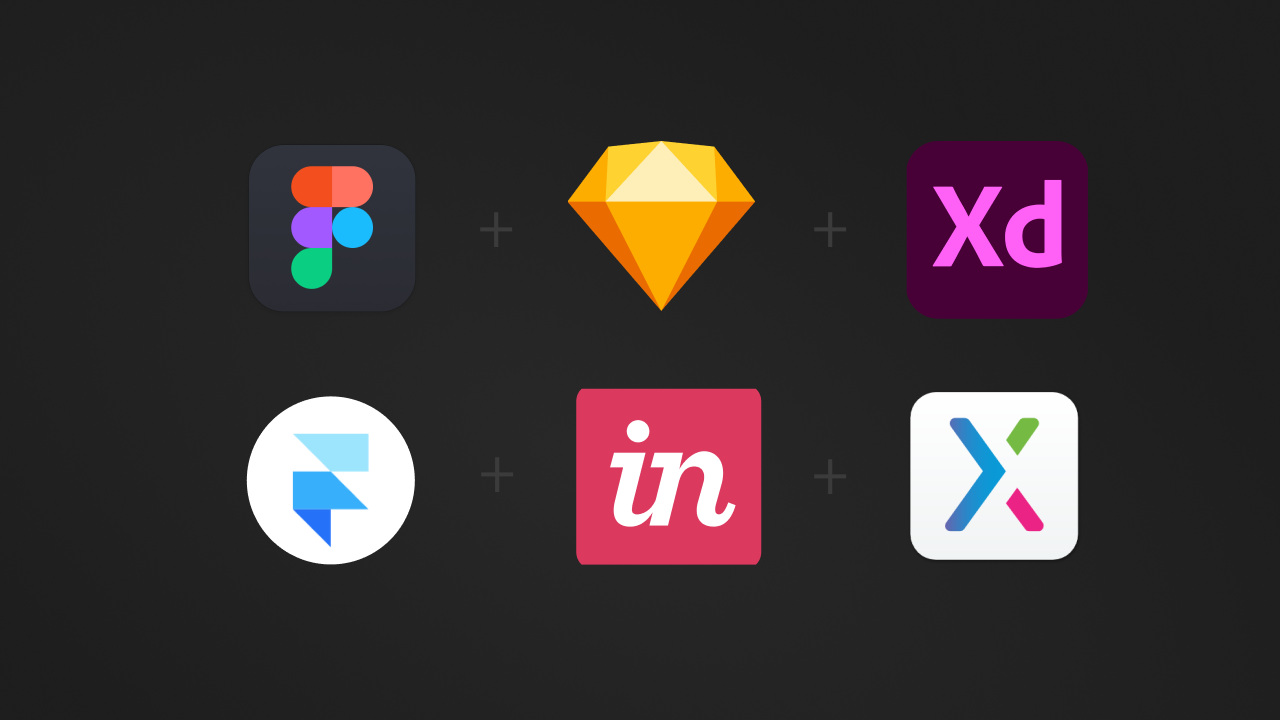
The original version of this post was published in 2021, and at that time, the list of the best software for UX/UI design consisted of 6 different software: Sketch, Figma (Free), Adobe XD, Framer, Invision, and Axure. Interestingly, in 2025, this list boils down to one main software, Figma.
In just a few years, it seems Figma has won the competition as the industry-standard software. I believe Figma’s superiority comes from their dedication to serving the community, both through their community files and efforts, as well as through offering loads of tutorials and a high degree of online presence that their employees have, for example, on LinkedIn.
Figma always seems to be one step ahead, developing tools for the quickest of early adopters. For example, now, towards the end of 2025, going into 2026, we are seeing an interesting trend where generative AI tools such as ChatGPT and Claude are becoming standard tools for UX and UI design. While other design software is hardly touching AI, Figma launched “Figma Make” during the summer of 2025 and is developing Figma Code Layers. It is incredible how fast Figma is revolutionizing its own product, inspiring designers around the world to keep up.
More reading: Why Figma is the best design software

What makes a software good for UX & UI Design?
Certain design tasks are specific to UX and UI design, compared to, for example, graphic design. These are:
- Designer-developer handoffs – Functionalities that turn design mockups and prototypes into code, and facilitate collaboration between designers and developers
- Symbols and components libraries (Design Systems) – Many companies work with design systems in larger teams and in multiple projects, requiring software that allows for creating reusable UI components and a common design system
- Prototyping and animations of interactive elements – Designers and developers need to be able to design interactions between users and systems in various screens, features, and interfaces. Compared to print design, UX and UI design handle human-technology interactions, and design software needs to allow designers to create and prototype technology-based interactions.
1. Designer-developer handoffs
Designer-developer handoffs are the process by which a designer presents designs to the developer for implementation. The developer needs to understand how to implement the design correctly, not only in terms of exact HEX colors, but also in the functionality and the bigger picture. Oftentimes, developers even need to make their own design judgments if the designer has not filled in all the gaps, which can happen when a team is too pressed for time.
Figma has created “Developer mode”, where developers can inspect design prototypes for code-based details or even export layers as code. They also have a “Ready for dev” mode, where designers can mark parts of a design as ready for designer-developer handoff.
Some of the most important features that assist designer-developer handoffs are 1) generating front-end code from design mockups. This is something I believe we will soon have mastered with AI-assisted code generation, especially when integrated with design software. 2) Manual inspection tools to grasp hex codes, paddings, margins, SVG files, and more. 3) Collaborative interfaces where multiple people can comment and inspect different elements of a design. This is useful both for feedback between designers, as well as for clarifying questions from developers, or a way to give and recieve feedback in real-time.
Learn more
- Figma – Guide to Developer Handoff: A collection of best practices from the experts
- Interaction Design Foundation – Design Handoffs
2. UI Components and Design Systems
In companies with multiple designers, larger teams, or bigger projects, many utilize design systems. A design system is a collection of UI patterns for a product or company, consisting of color palettes, fonts and font sizes, padding and margin guidelines, iconography, UI components such as buttons and cards with states, and other standardized design patterns. The exact way a design system is set up and used varies by company, and is often a work-in-progress.
In my experience, the biggest benefit of developing and maintaining a design system is that it helps with design consistency throughout old and new projects. When updating something old, you don’t need to go through all old files one by one, but only need to update the design component in the design system library. Further, it saves time for each new project when you don’t need to design every UI component from scratch or make all the design decisions for every project. You can also extend design systems for new projects by keeping the base files but updating them to suit a new application you’re working on. It’s great for efficiency and saving time.
3. Prototyping and Interactive UI animations
An aspect that differentiates UX and UI design from traditional graphic design is that digital products and applications are interactive and technology-based. You click on something, and something else might happen. You can give an input to a system, and it can, in turn, provide an output. These things do not happen when you’re looking at a printed paper. Therefore, UX and UI designers need to design for these interactions by creating prototypes and code-based interactive elements. Prototypes can, for example, be links between different screens, to show developers what should happen when a user performs a certain action.
There are many ways of creating prototypes, such as through textual explanations, paper-based, vector-based, video recordings with explanations, and so on. Most commonly, prototypes and interactions are created digitally in software such as Figma, and then handed off to developers by sharing the design file.
What is a prototype?
A prototype shows how different UI screens, elements, and features should be connected, and how users can interact with various elements of the design.
Example: When a user clicks on the “Buy” button on a landing page, the system should provide visual feedback of the performed action and redirect the user to a new payment page.
What is the role of AI in design software?
I recently wrote two articles on generative AI in the UX/UI design process, which you can find here: Generative AI in Design and How Generative AI is Revolutionizing Design Workflows. Take a look at those if you’re interested in learning how you can use AI in the design process or workflow.
I believe that generative AI will change the way we work with UX and UI design. Not to the extent that there won’t be any more designers or developers, but I think it’s a tool that can be used in various parts of the design process to help us work better and faster. Generative AI for UI design is still in its early stages, with tools such as Figma Make only recently surfacing. But what I am seeing is that AI-generated code tools can help UI designers transform their designs into code in a much faster and efficient way than before. You do not need to learn how to code by hand to transform your designs into functional prototypes, but you can use tools that generate code for you based on your design files. The quality of the functional code is probably not up to par on something you’d want to release as any final product, but it can definitely be used to create functional prototypes that you can play around with and that you can further develop on your own.
Which UX/UI program to start with?
Honestly, it doesn’t matter much which software or tool you learn to use first. Most of them work on the same principles. If you know how to work with frames, vector graphics, components, groups, and similar, you’ll easily transfer your knowledge to a different application. Things might just be referred to with different terminology throughout time, as ‘Frames’ were often called ‘Artboards’ before, and ‘Components’ were called ‘Symbols’. But learning UX and UI design isn’t about learning a specific tool or term, because those things change. If you want to learn design, focus on adopting design thinking and try to think of design softwares as a tools for your work.
For beginners, I would recommend starting with Figma.
Applications such as Framer and Axure have a steeper learning curve, and you may not need to be such an expert at micro-interactions when starting out. I started with Sketch when I began learning, but today, I would’ve chosen Figma since it’s an entirely free and cloud-based application. Figma also has all the functionalities you need to start learning, creating mockups, and prototypes. I also really love their “Figma Community” where designers share their design resources.
How to learn UX/UI design
The best way to learn UX & UI design is to read a lot of books, articles, educational videos, and practice! You need to combine theory with real projects and ask for feedback so that you can learn from others. Formal education, such as a university degree, can be important if you want to get into a UX research position. Otherwise, if you’re more interested in the UI and graphic direction, you self-learn and focus on creating a great portfolio.
You may also be interested in: Best 4 Books to Learn UX/UI Design for Beginners
For beginners
When first learning design, it’s better to focus on understanding all the basic principles of design, such as:
- Color theory
- Layouts
- Symmetry
- Usability principles
- Basic typography
- Basic prototyping
- Information architecture
- How to use programs with which you can express your designs
More advanced skills
When advancing one’s skills, it’s a good idea to start exploring:
- Front-end development – To understand the possibilities and restrictions of what you’re designing
- Design Systems and components– Creating and maintaining
- Product Design – Take into account the business objectives and budgets
- Animations – For micro-interactions and feedback
- Inclusive design – Accessibility for all
- Ethical design – Be aware of dark UX patterns and unethical design practices
Now you know which the best UX/UI Design software is! I hope this was helpful.
Want to read more similar articles?
Here are a few more of my articles about the same topic: